Offline Mode
Ante runs local GGUF models through a natively managed llama.cpp engine. No API key, no account: point Ante at a model file and the full agent loop runs on your hardware. Once a model is on disk, inference needs no network connection at all.
For a fully disconnected run, set ANTE_TELEMETRY=off as well. This disables application metrics and log export independently of local inference; see Telemetry.
Offline mode is under active development. Expect rough edges and rapid iteration.
How it works
When you select offline mode, Ante:
- Checks for llama.cpp and offers to install or upgrade it: a pinned, checksum-verified official build matched to your hardware. macOS uses Metal; Linux chooses the strongest compatible CPU/Vulkan feature tier, prefers a CUDA build matched to the NVIDIA compute capability, and falls back to Vulkan when the pinned release has no compatible CUDA artifact
- Discovers GGUF models on your system
- Detects llama servers already running on local ports
- Estimates memory requirements from model size and context window
- Boots and supervises the inference server for you
Prefer your own llama.cpp build, extra server flags, or a server you started yourself? See Custom Engines.
Setting up
-
Launch Ante and open offline mode — Start Ante normally and use the offline mode selector in the TUI:
ante# In the TUI/offline-mode -
Install llama.cpp — If not installed, Ante will prompt you to install it automatically to
~/.ante/llama.cpp. When the pinned version changes in a new Ante release, Ante offers an upgrade. To do the same without the TUI, runante offline install: it installs the pinned build, replaces a mismatched one, and is a no-op when already current. -
Select a model — Choose from:
- Verified models — curated models downloaded from Hugging Face
- Local models — GGUF files already on your system (auto-discovered)
- Running servers — attach to a llama server already running on a local port or reachable endpoint
-
Or pass a model path directly — skip the TUI and load a GGUF file in one step:
ante --offline-model /path/to/model.gguf "your prompt here"Ante boots the llama-server, waits for it to be ready, then runs the session. Useful in scripts or CI.
Once a model is loaded, it is registered as the local provider in the catalog, so you can also switch to it with /providers or target it with --provider local. The entry exists only while a server is registered: when the server stops, local leaves the catalog. Starting with a saved local selection and no server running gates the session with a notice (run /offline-mode to start or attach one); headless runs fail fast with the same message. See mixing local and frontier.
Scripted and server usage
Headless (single session)
Pass --offline-model to run a one-shot prompt against a local GGUF file — no TUI required:
ante --offline-model ~/.ante/models/Qwen3.5-9B-Q4_K_M.gguf "Explain this code"
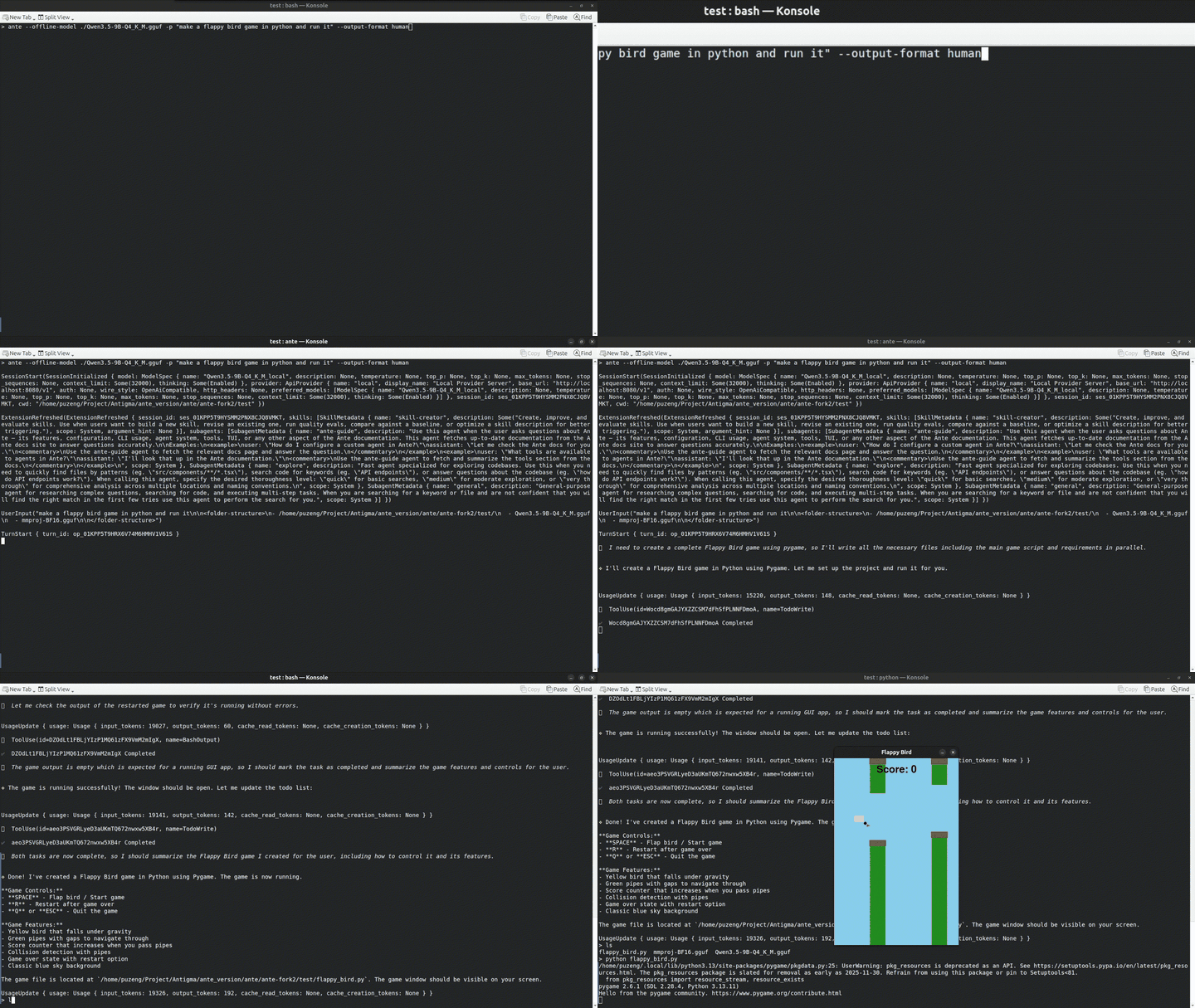
Ante starts the llama-server, waits for it to become ready, runs the session, then shuts the server down automatically.
Headless runs never prompt to install the engine. On a machine that doesn't have it yet, the run fails fast and tells you to run ante offline install first — useful to bake into scripts and CI images.
Serve mode (WebSocket server)
When running ante serve, you can load a model once and share it across all connecting clients:
ante serve --ws 127.0.0.1:9000 --offline-model ~/.ante/models/Qwen3.5-9B-Q4_K_M.gguf
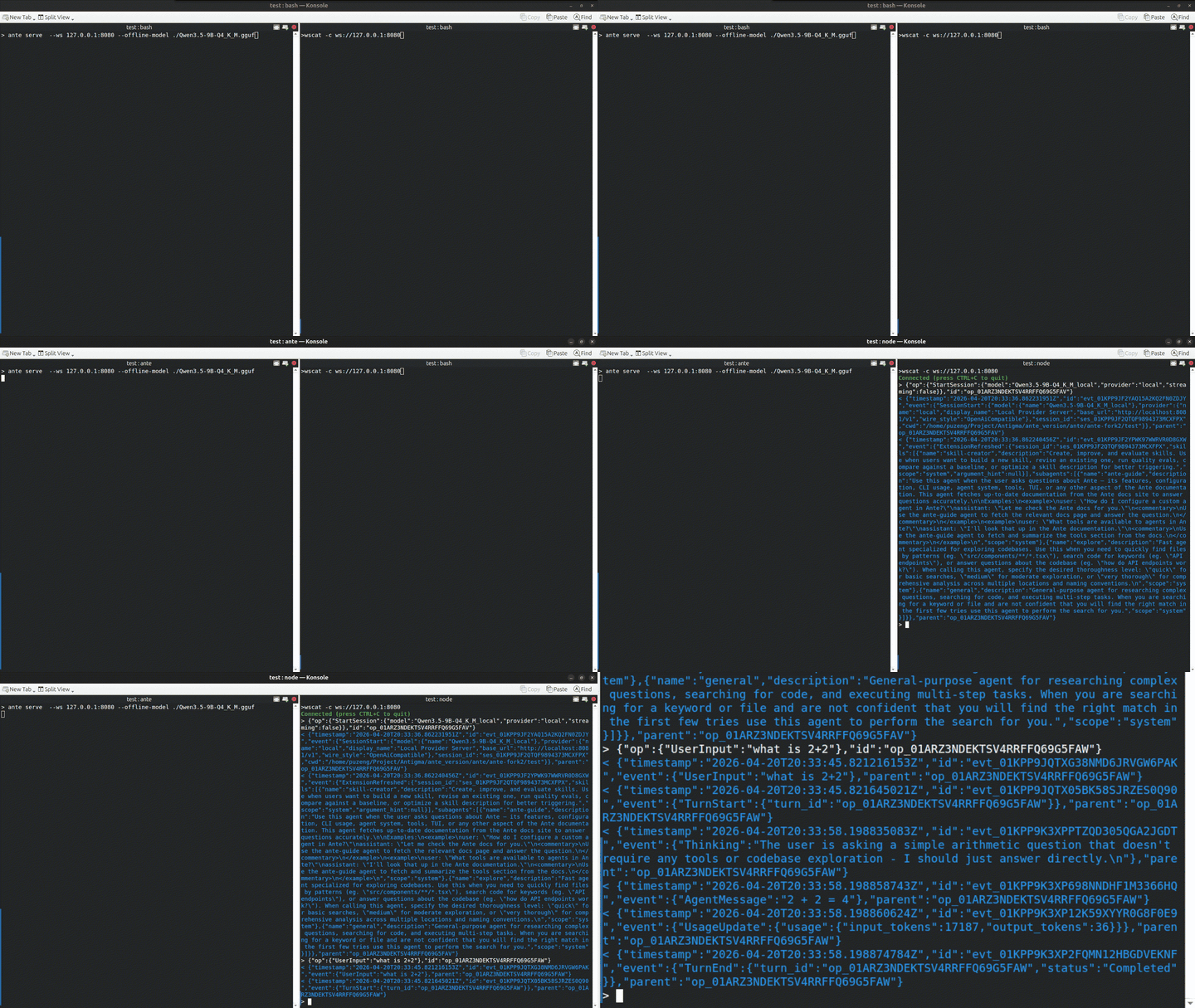
The llama-server starts before accepting connections, and each WebSocket client uses the same running server. The server shuts down cleanly on Ctrl+C or SIGTERM.
Loading progress
When a model is downloading or being loaded into memory, Ante shows a real-time progress bar in the TUI with status messages:
- Download phase — progress tracks bytes received against the total file size
- Metadata — model metadata is being read from the GGUF file
- Tensor loading — weights are being loaded into RAM/VRAM
- GPU offload — layers are being transferred to the GPU (if available)
The same progress is reported in headless mode via log output.
Model discovery
Ante automatically scans the following directories for GGUF model files:
| Directory | Description |
|---|---|
~/.ante/models | Default model directory (configurable) |
~/.cache/llama.cpp | llama.cpp cache |
~/.cache/huggingface/hub | Hugging Face cache |
~/.llama/models | Common llama model directory |
Model preferences
Per-model settings, saved automatically in the offline config:
| Setting | Description |
|---|---|
context_window | Context window size (minimum 32K tokens) |
thinking | Enable/disable chain-of-thought |
temperature | Sampling temperature (unset means the model default) |
extra_args | Extra llama-server flags, appended to the launch command — see Custom Engines |
Vision models
If a multimodal projector file (mmproj-*.gguf) sits next to the model file, Ante attaches it automatically at launch, and the model accepts images in chat.
Memory considerations
Ante estimates memory usage based on model file size, KV cache (scales with context window), and shard count.
For large models, reduce the context window to lower memory usage. The minimum is 32K tokens.
Server management
| Shortcut | Action |
|---|---|
Ctrl+E | Stop the currently connected server |
Ctrl+G | Toggle the inference log panel |
Ctrl+K / Ctrl+J | Scroll the log panel up/down while it is open |
When exiting Ante with a server running, you'll be prompted:
s— Stop the server and exitk— Keep the server running and exit (prints PID)Esc— Cancel and stay in Ante
Configuration reference
All offline mode configuration is stored in ~/.ante/offline-config.json:
{
  "version": "1.0.0",
  "model_directory": "~/.ante/models",
  "port": 8080,
  "last_model": "model-name",
  "model_preferences": {
    "model-id": {
      "model_id": "model-id",
      "context_window": 32768,
      "thinking_enabled": true,
      "temperature": 0.7,
      "extra_args": "--threads 12"
    }
  }
}
| Field | Description | Default |
|---|---|---|
model_directory | Where to look for local GGUF models | ~/.ante/models |
port | Starting port for the llama server | 8080 |
last_model | Last used model (auto-saved) | — |
model_preferences | Per-model settings (see above) | — |
llama_cpp | Engine install details, binary paths, and server defaults — see Custom Engines | managed by Ante |
Environment variables
| Variable | Description |
|---|---|
ANTE_OFFLINE_CONTEXT | Override the default context window cap (tokens). Useful when you need a larger context than the 32K default, and your hardware has enough RAM. Example: ANTE_OFFLINE_CONTEXT=65536 ante --offline-model ... |