Providing Context: Files, Folders & the Web
Give the agent exactly the context it needs: reference local files and directories directly in your prompt, or let Ante fetch what it needs from the web.
Using @ mentions
Type @ followed by a file or directory path. Ante shows a search dropdown as you type — press Tab to autocomplete, then Enter to confirm.
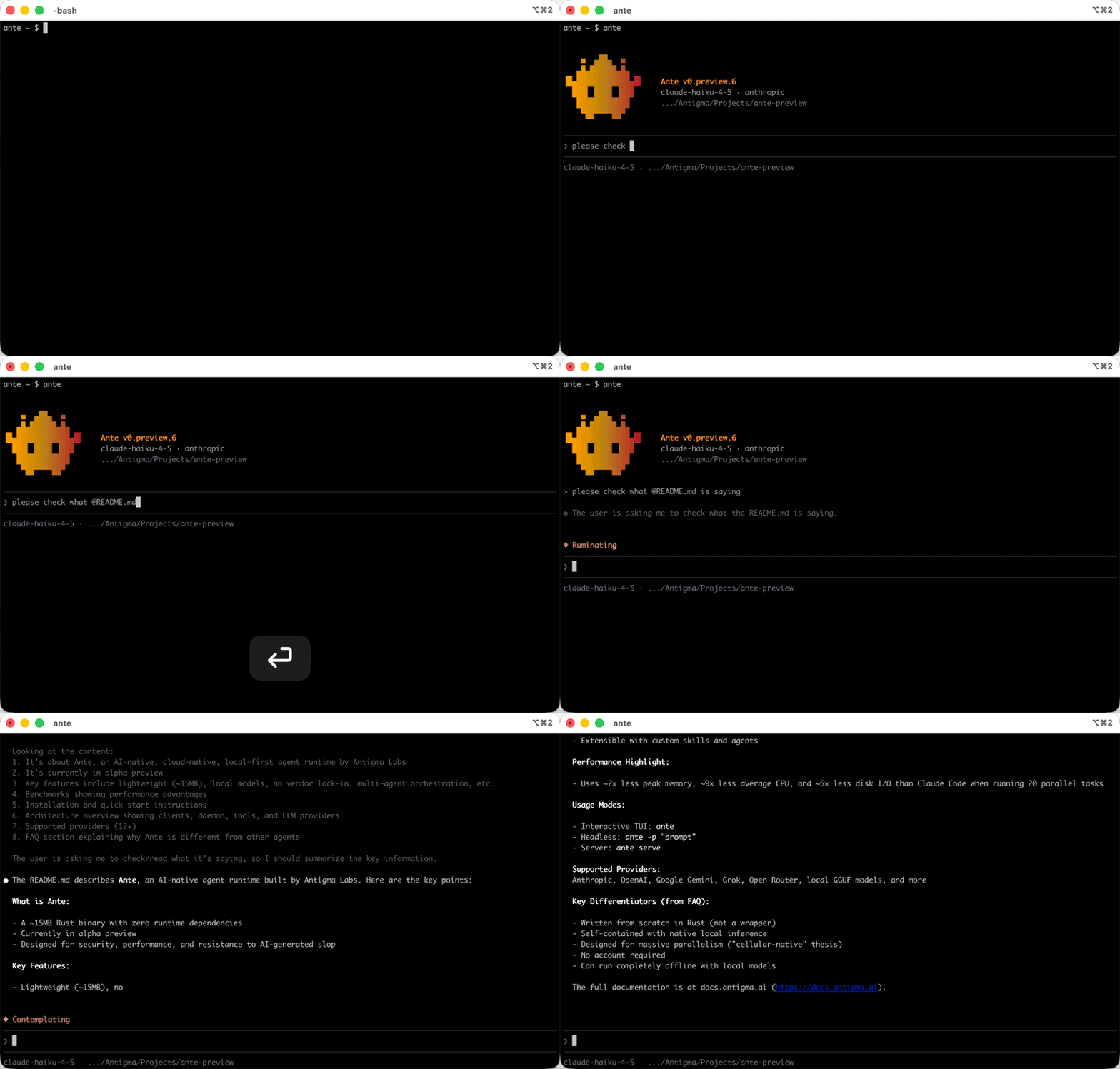
@path/to/file.rs— embeds the full file contents into your message@path/to/dir/— embeds the directory tree listing
Completion covers the full project tree, including files nested more than six directories deep, and honors the same ignore rules as Ante's file tools. Project-relative searches reuse a background-built index for fast fuzzy matching. ~/, absolute, ../, and ./ paths also work, so files outside the project remain available.
This ensures the agent sees exactly the code you're asking about, without guessing or searching.
If you paste multiple file paths, Ante auto-prefixes them with @ for convenience. You can reference as many files as you need in a single prompt.
Pulling in web content
Ante can search the web and fetch content from URLs, letting you pull in documentation, look up APIs, or research topics without leaving the terminal. Just ask naturally and Ante will use its web browsing tools to find what you need:
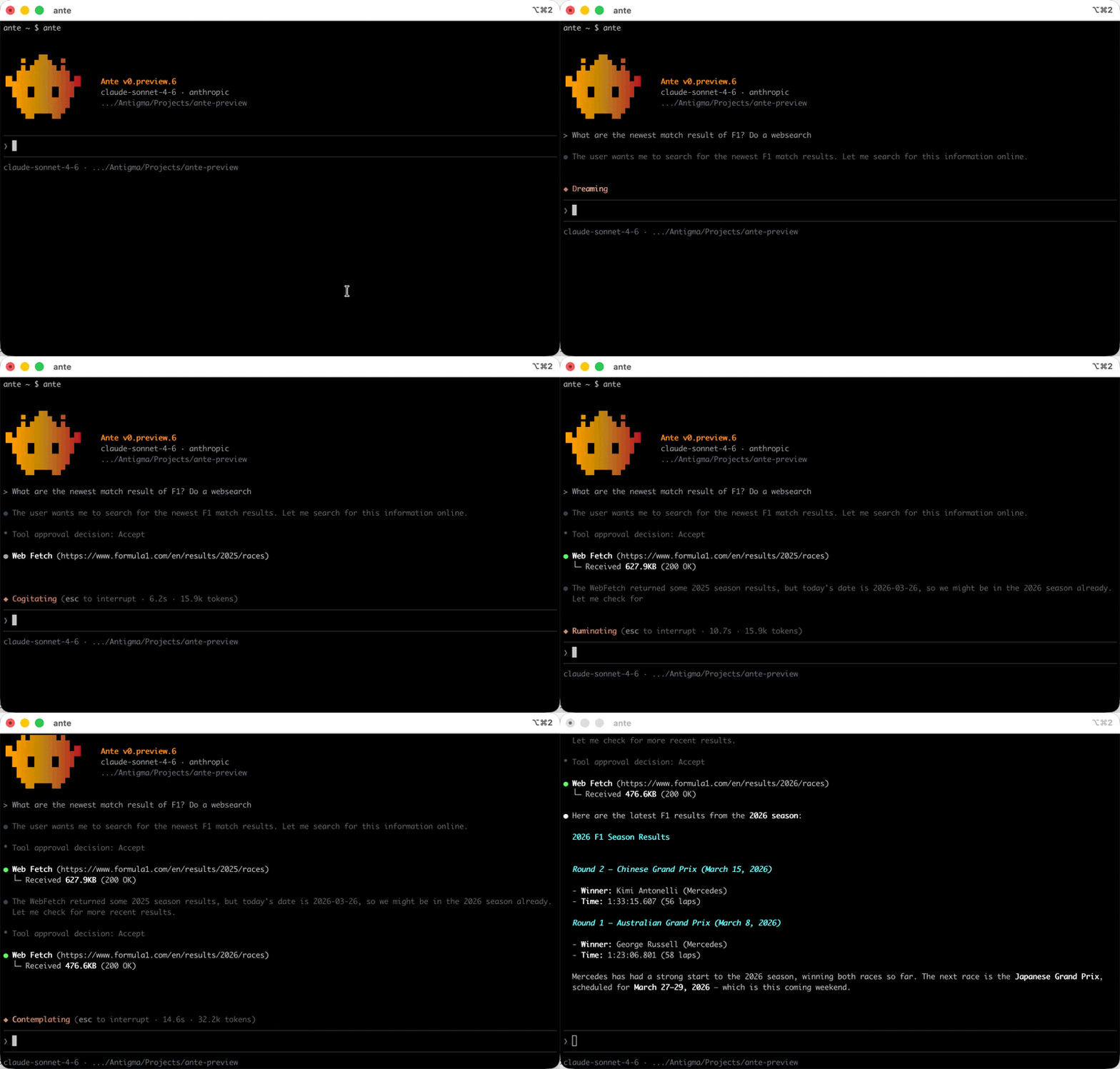
The agent can:
- Search the web for documentation, examples, and answers
- Fetch a URL to read its contents directly (e.g., API docs, release notes, blog posts)
- Summarize the results and integrate them into the conversation
This is particularly useful when you're working with an unfamiliar library or need to check the latest documentation for a tool or API.
Fetching a URL (WebFetch) is on by default. Full web search (WebSearch) runs through the provider's native search, so it is available only on a provider that supports it (Anthropic, OpenAI, Gemini, Grok, OpenRouter, Antix, or Ali Coding Plan). On those providers it is enabled automatically — no flag needed; on others it is not offered. See the Tool Reference.
You can also pipe web content into Ante from the command line: curl https://example.com/docs | ante -p "summarize this".